Editor Widgets
The Editor UI is built entirely out of Widgets. Widgets are different from Panels, which are used for in-game UI. Widgets can be various elements or components, such as labels, buttons, text boxes, trees, or images.
The Editor UI is built entirely out of Widgets. Widgets are different from Panels, which are used for in-game UI. Widgets can be various elements or components, such as labels, buttons, text boxes, trees, or images.
If a Widget does not have a parent, it is a Root Widget. This Widget will act as a window on the user's OS.
Creating a Widget
Each Widget has a Layout, which can contain child Widgets or sub-Layouts. Widgets can also be styled with CSS similarly to Panels.
public class ExampleWidget : Widget
{
public ExampleWidget(Widget parent) : base(parent, false)
{
// Create a Column Layout
Layout = Layout.Column();
// Give it some Margins/Spacing
Layout.Margin = 4;
Layout.Spacing = 4;
// Apply some CSS styling
SetStyles( "background-color: #303445; color: white; font-weight: 600;" );
// Add some child Widgets to the Layout
Layout.Add(new Label("Press the button:", this));
var btn = Layout.Add(new Button("Click me!", this));
btn.Clicked += () =>
{
Log.Info("You did it!");
};
}
}
You can now create this Widget anywhere else in your Editor Project by doing the following:
// Creates the Widget as a new Window since it has no parent
var windowExample = new ExampleWidget(null);
windowExample.Show();
// Creates the Widget as the child of another Widget, then adds it to that Widget's Layout
var childExample = new ExampleWidget(parentWidget);
parentWidget.Layout.Add(childExample);
Creating a Dockable Widget
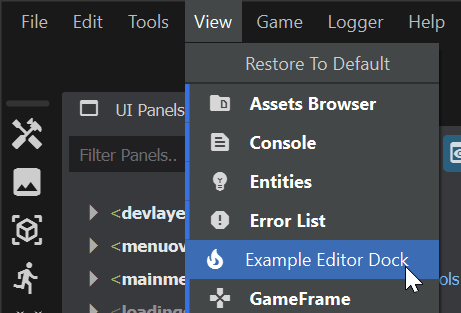
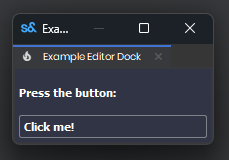
Creating a Widget with the [Dock] attribute will allow it to be docked within any DockArea. It will also be added to the View menu so it can be toggled easily, the Dockarea is specified to determine where the Widget will be docked by default.
[Dock("Editor", "Example Editor Dock", "local_fire_department", DockArea.Center)]
Creating an Asset Editor
Including the [EditorForAssetType] attribute will open your widget upon double-clicking the specified asset. Doing this will invoke AssetOpen() on your Widget through IAssetEditor so you can get any Asset information.
// Supply the file extension of the asset, cannot be more than 8 characters
[EditorForAssetType("item")]
public class ItemEditorExample: Window, IAssetEditor
{
// Return false if you want the have a Widget created for each Asset opened,
// Return true if you want only one Widget to be made, calling AssetOpen on the open Widget
public bool CanOpenMultipleAssets => true;
Asset MyAsset;
ItemResource MyItem;
Label MyLabel;
public ItemEditorExample()
{
// Cannot modify the Layout of a Window, instead we have a Canvas Widget
Canvas = new Widget( null );
Canvas.Layout = Layout.Column();
Canvas.Layout.Spacing = 8;
Canvas.Layout.Margin = 8;
MyLabel = Canvas.Layout.Add( new Label( "", this ) );
var btn = Canvas.Layout.Add( new Button( "Reset Name", this ) );
btn.Clicked += ResetName;
Show();
}
// From IAssetEditor
public void AssetOpen(Asset asset)
{
// Get the Resource from the Asset, from here you can get whatever info you want
MyAsset = asset;
MyItem = MyAsset.LoadResource<ItemResource>();
MyLabel.Text = MyItem.Name;
// If CanOpenMultipleAssets returns true, you should refocus this widget
Focus();
}
// From IAssetEditor
public void SelectMember(string memberName) { }
void ResetName()
{
// If we modify the Resource at all, we can save those changes with SaveToDisk
MyItem.Name = "N/A";
MyLabel.Text = MyItem.Name;
MyAsset.SaveToDisk(MyItem);
}
}